If you have not already been enrolled in DUO Mobile, reach out to helpdesk@mozaic.org or call 316-612-0121 to reach the helpdesk and we will assist you with setting this up.
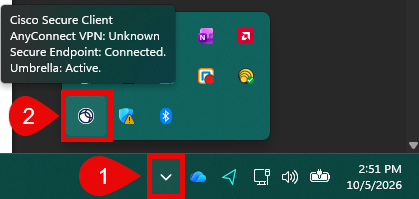
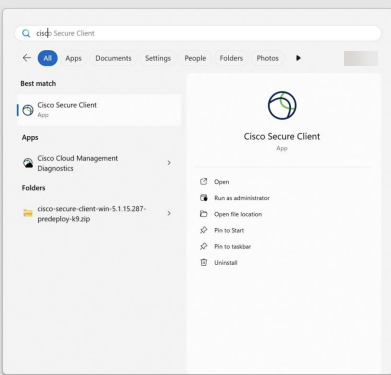
Find the Cisco Any Connect icon either by going to your taskbar and double clicking it or by searching for it in the start menu. (Both shown below)
Task Bar
Start Menu
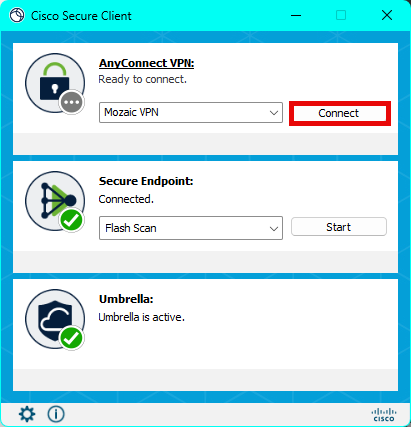
Once you launch Cisco Secure Client, you should then see the following screen pop up. (If you do not see the following screen, please reach out to IT.) To connect to the VPN, click connect.
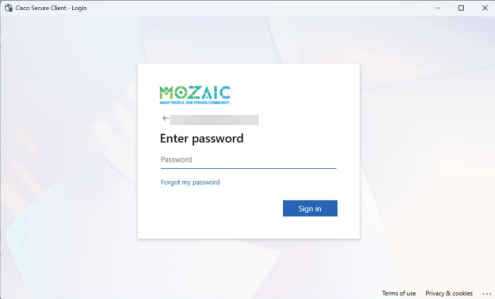
Once you click connect, you will be prompted to sign in with your Mozaic email and password. Enter Mozaic Email Address
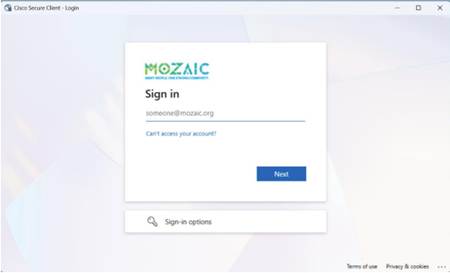
Enter Mozaic Password
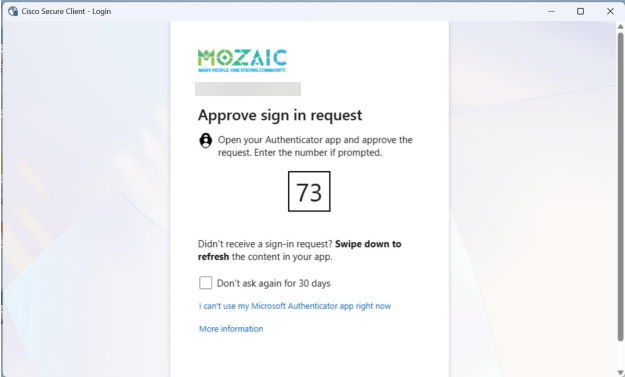
Next you will be prompted to by Microsoft Authenticator. Microsoft Authenticator can appear in several ways. The screen shot below shows the most common method. If prompted for a two-digit code, it will likely be a different code than shown in the example below.
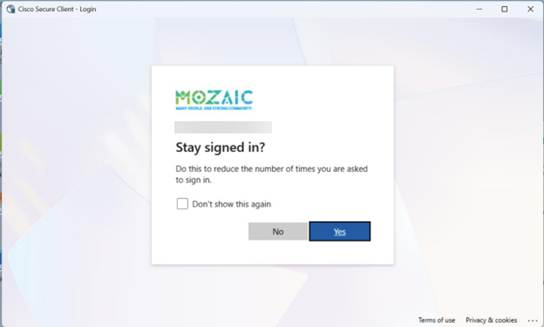
Once approved, select no to the prompt below:
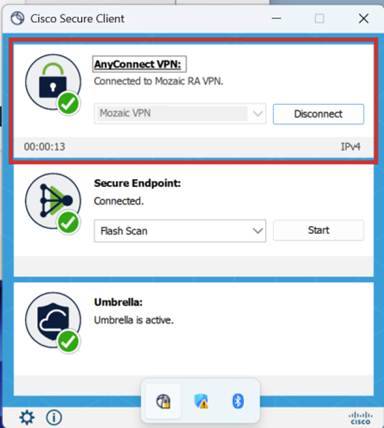
To confirm that you have successfully connected to the VPN, you should see the following screen:
Was this article helpful?
That’s Great!
Thank you for your feedback
Sorry! We couldn't be helpful
Thank you for your feedback
Feedback sent
We appreciate your effort and will try to fix the article