When requesting access to the iCM phone app you will have to follow these steps below.
- Submit an IT ticket, this helps us document and keep track of requests
- DIRECTOR APPROVAL IS REQUIRED
- Once approved, we will either install the iCM app to your Agency phone remotely or walk you through downloading it to a personal phone.
- *IF REQUESTING iCM APP ON AN AGENCY PHONE/IPAD BE SURE THE DEVICE IS UNLOCKED WHILE WE ARE INSTALLING THE APP OTHERWISE IT WILL NOT DOWNLOAD*
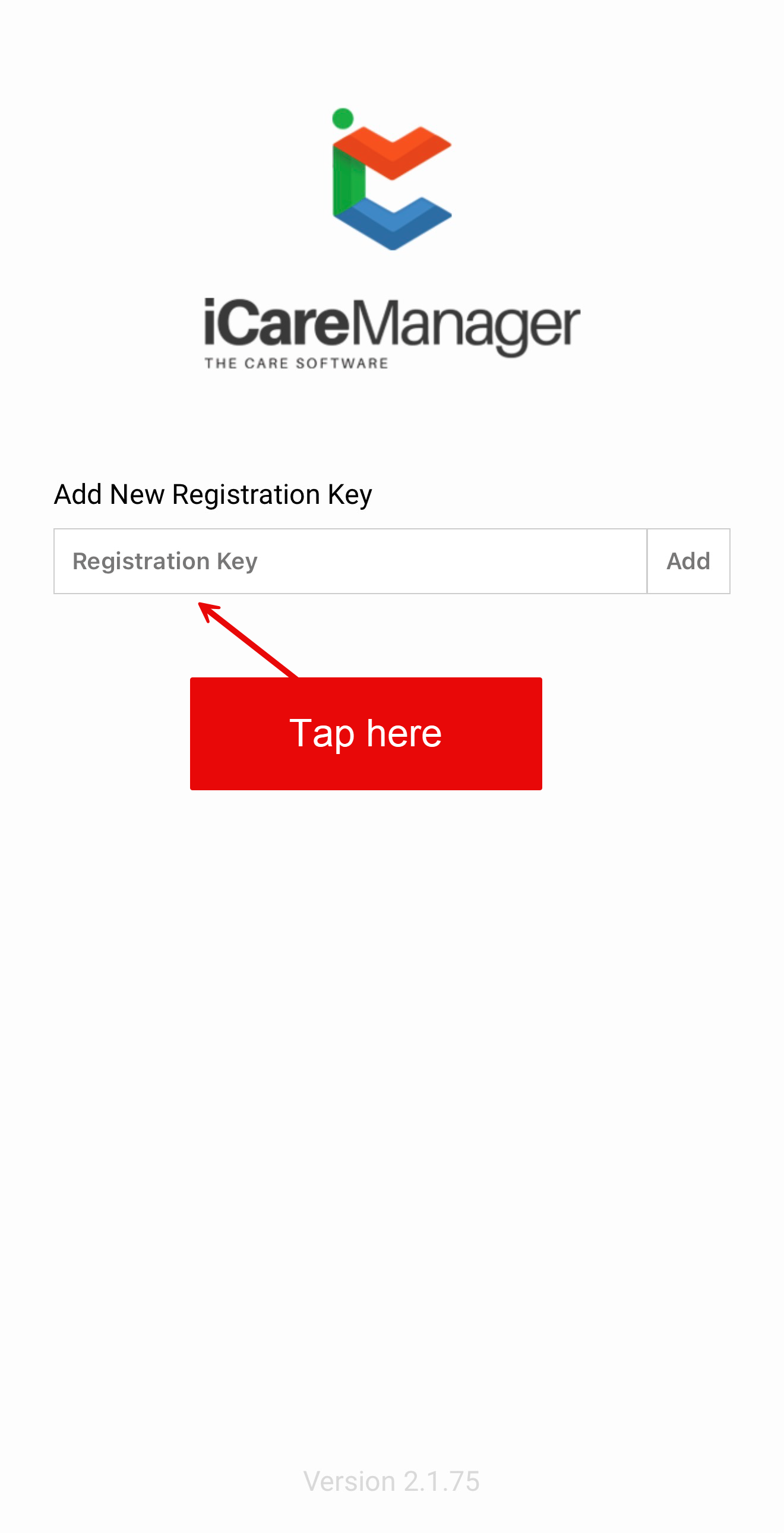
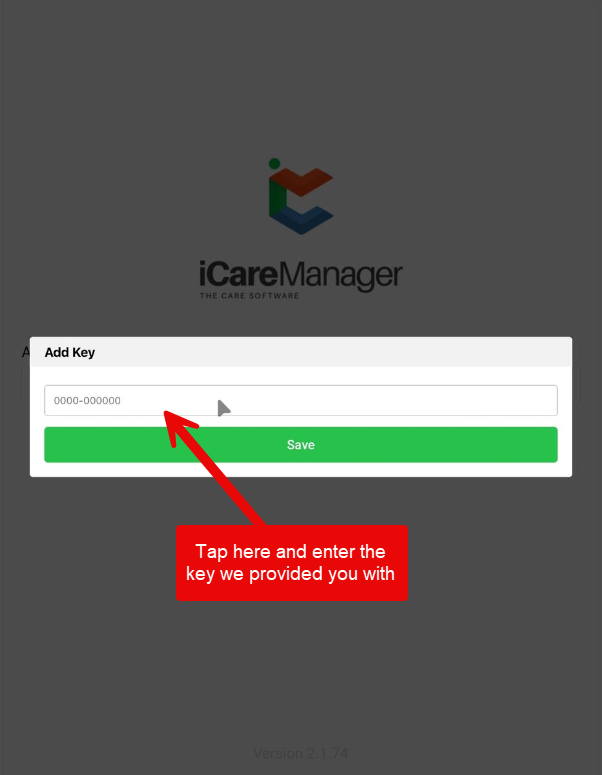
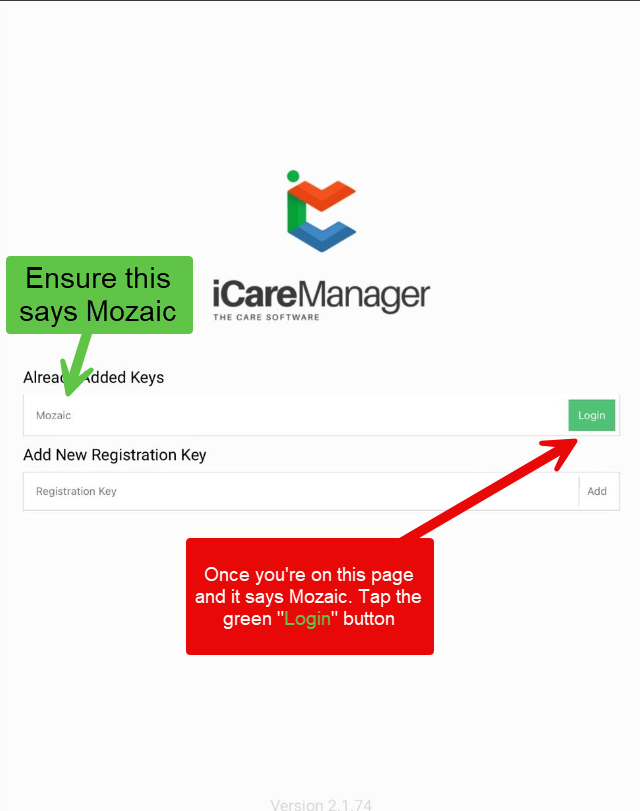
- Let us know through the ticket when the app is installed. We will provide you with the registration key when you are prompted to "Add New Registration Key". Once you add the registration key, you will see "Already Added Keys" with Mozaic as an option. Tap on the green "Login" button. Steps in order, see below for reference.
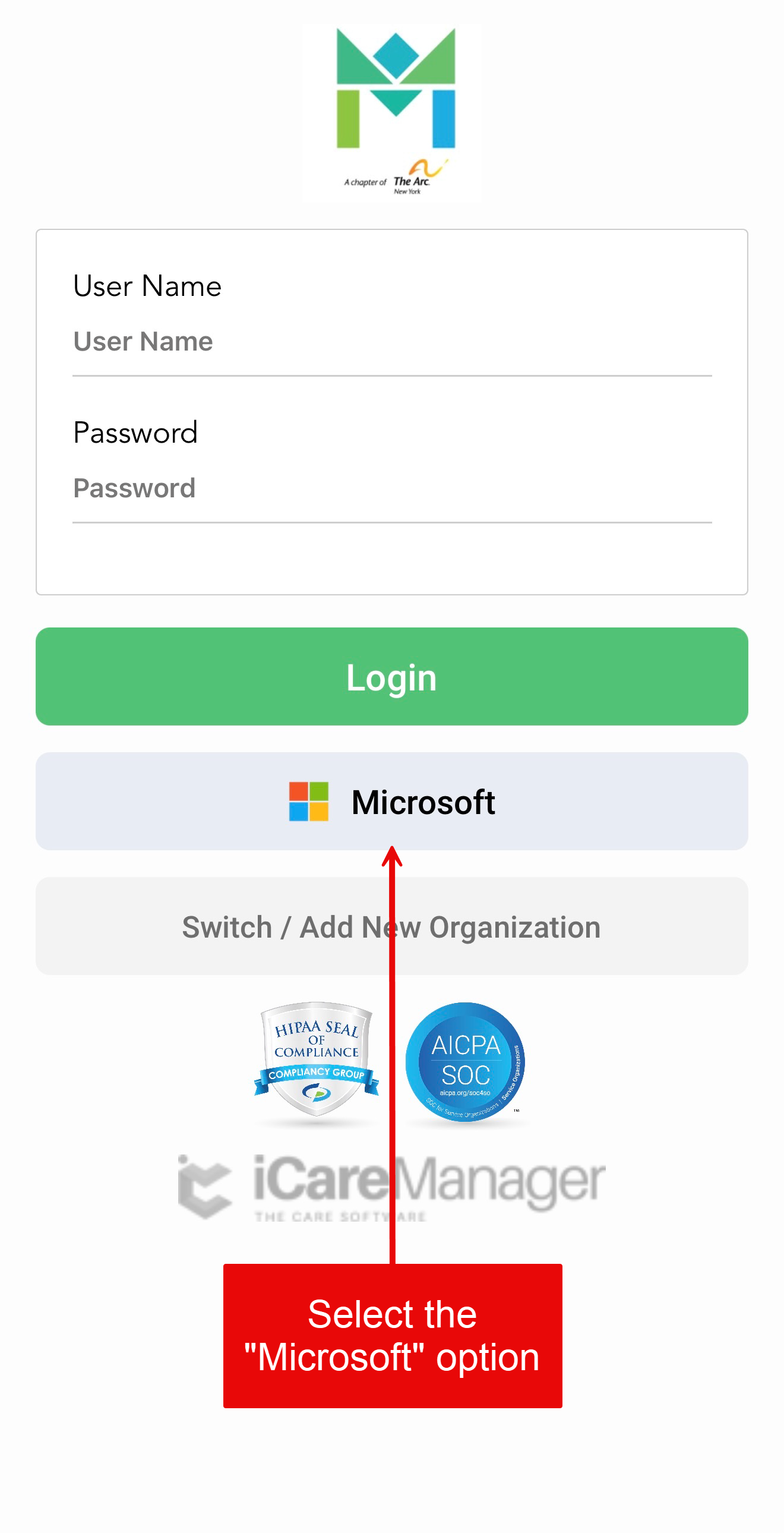
- You will now be redirected to a login screen with the Mozaic logo at the top of the page.
- Select the Microsoft option as shown below
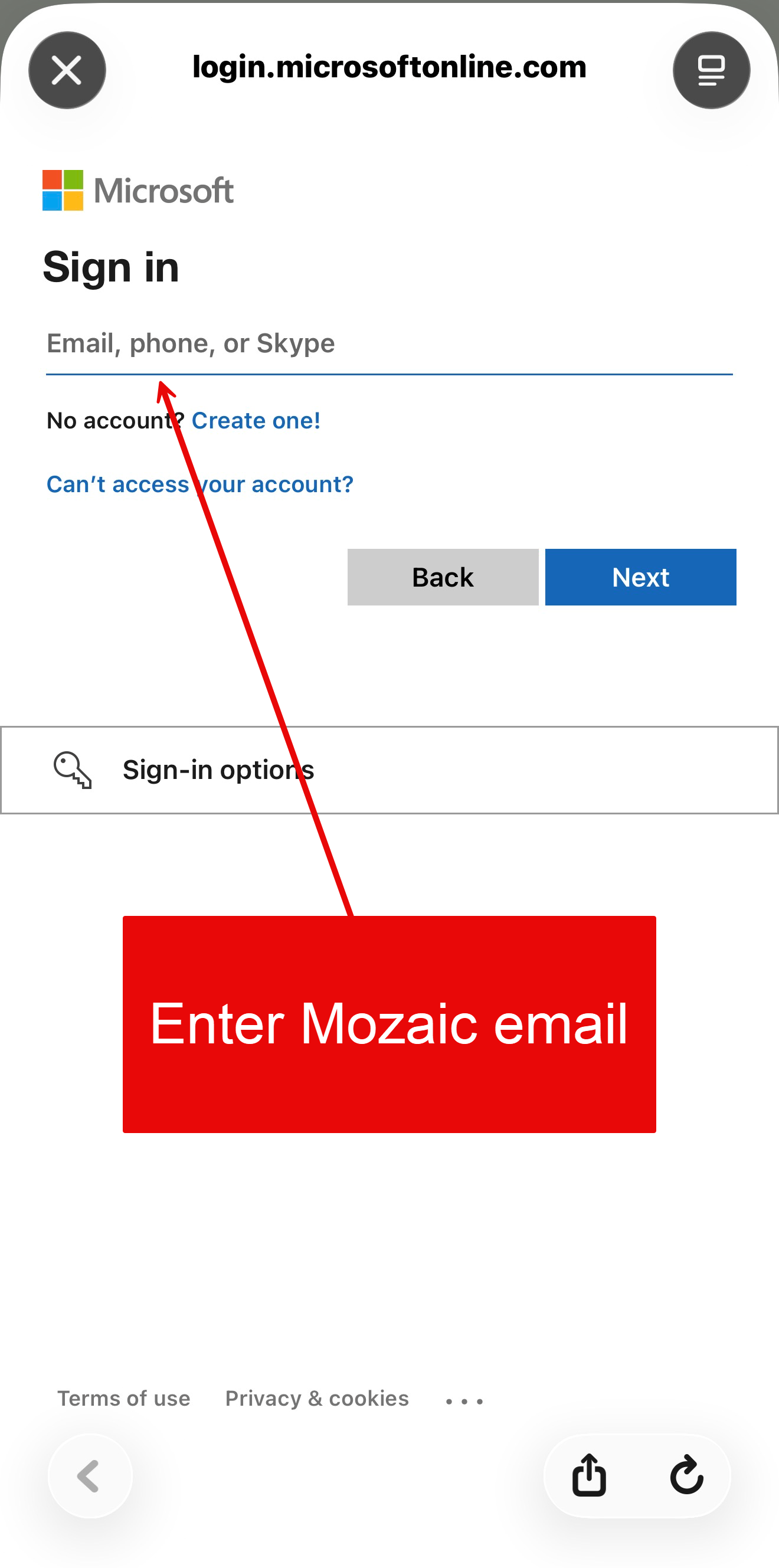
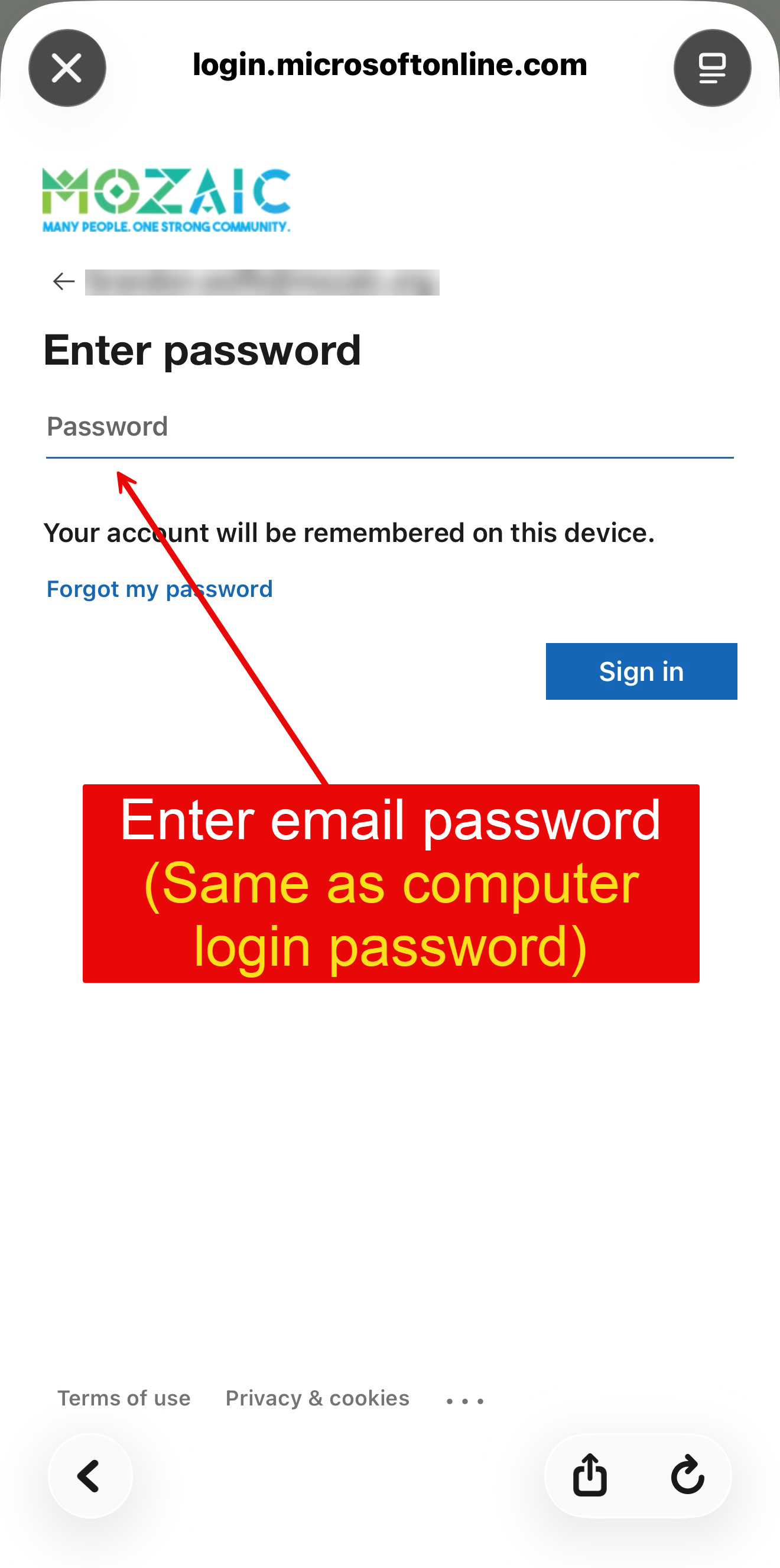
- You will now be prompted to enter your Mozaic credentials. These credentials are the same credentials you use for logging into the computer and email.
- Select the Microsoft option as shown below
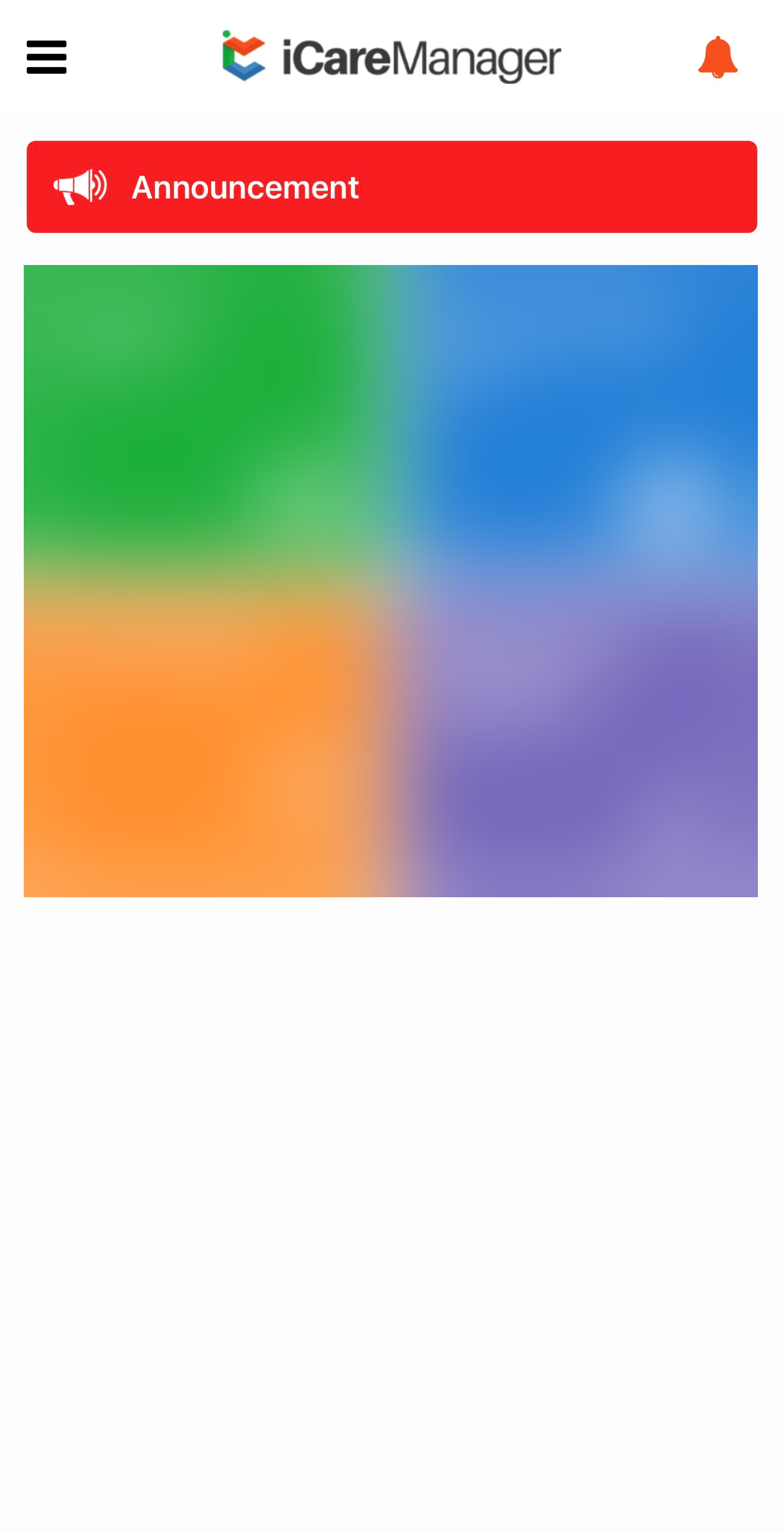
- You should be logged into the dashboard by this step! We will confirm with you that you have accessed the iCM app successfully and resolve out the ticket! See below for end result when successfully logged in.
Was this article helpful?
That’s Great!
Thank you for your feedback
Sorry! We couldn't be helpful
Thank you for your feedback
Feedback sent
We appreciate your effort and will try to fix the article